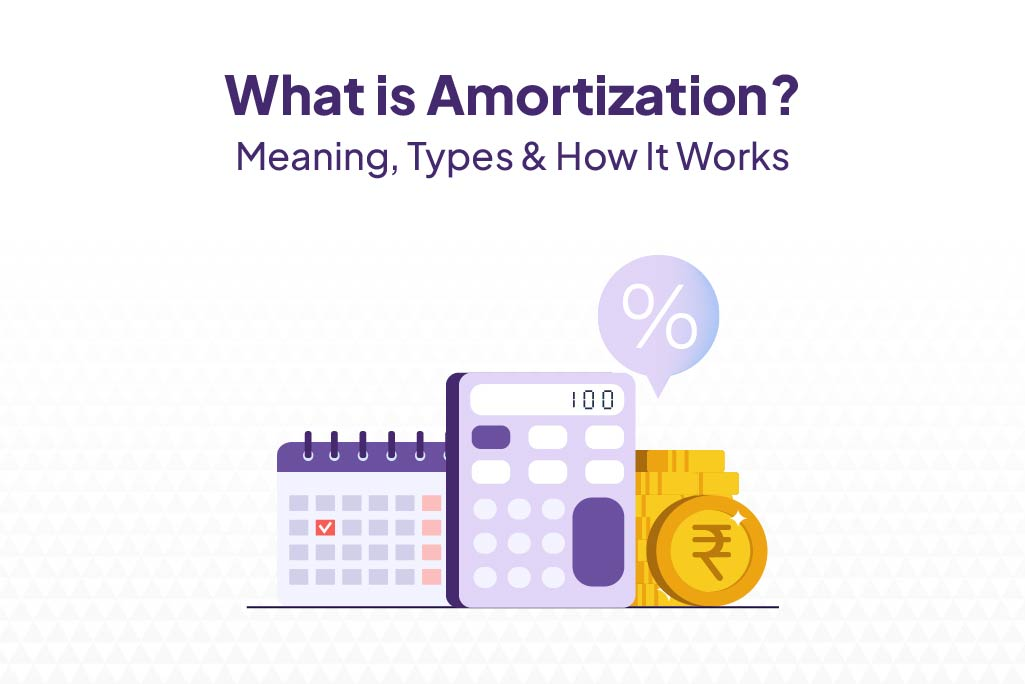
Amortization is the repayment method used for many loans in India, including personal, home, and vehicle loans. Instead of paying the entire amount at once, you repay the loan through fixed equated monthly instalments (EMIs) over an agreed tenure.
Understanding how amortization works helps you see where your EMI goes each month and how your loan balance gradually comes down.
What does amortization mean?
The amortization definition is the gradual repayment of a loan over a fixed period through regular EMIs. Each EMI includes two parts: one covers the interest charged on the outstanding loan amount, while the other reduces the principal you borrowed. Since the interest is calculated on the remaining balance, its share decreases with every payment, and a larger portion of the EMI goes towards repaying the principal. For most standard amortising loans, the EMI remains fixed throughout the tenure. However, for floating-rate loans, the EMI or loan tenure may change when the applicable interest rate is revised.
How does loan amortization work?
To understand what amortization is in practice, it helps to look at how each EMI is broken down.
- Each EMI is split into two parts: an interest component and a principal component.
- Interest is calculated on the outstanding loan balance for that month, not on the original loan amount you first borrowed.
- In the early instalments, a larger share of the EMI goes toward interest, since the outstanding balance is still high.
- As the balance falls month by month, the interest component shrinks and the principal component grows, even though the EMI itself does not change.
This is the core mechanic behind an amortising loan, and it is why paying off a loan early, when possible, tends to save more on interest than doing so later in the tenure.
Amortization schedule: understanding with an example
Take a loan of ₹1,00,000 at 12% annual interest, repaid over six months. The EMI works out to roughly ₹17,255.
This amortization schedule refers to the EMI breakdown month by month and shows how your outstanding balance moves:
| Month | EMI (₹) | Interest (₹) | Principal (₹) | Outstanding Balance (₹) |
| 1 | 17,255 | 1,000 | 16,255 | 83,745 |
| 2 | 17,255 | 837 | 16,418 | 67,327 |
| 3 | 17,255 | 673 | 16,582 | 50,745 |
| 4 | 17,255 | 507 | 16,748 | 33,997 |
Notice how the interest amount drops steadily while the principal repaid each month climbs, even though the EMI itself never moves.
What are the types of amortization?
Amortization is not limited to loans alone. Here are its types:
- Loan amortization: This applies to personal loans, home loans, and car loans repaid through fixed EMIs.
- Asset amortization: In business accounting, this refers to spreading the cost of intangible assets, such as software licences or patents, over their useful life. It works on a similar principle of spreading a cost over time, though it is distinct from loan repayment.
Why does amortization matter?
Why is amortization important in the first place? A few reasons stand out.
- Predictable, fixed EMIs make monthly budgeting far easier, since you know exactly what to set aside.
- It shows you precisely how much of each EMI is actually reducing your loan, rather than just covering interest.
- It helps you compare loan offers properly, using total interest paid over the tenure rather than the EMI figure alone.
- For businesses, it is relevant to how intangible assets are treated for accounting and tax purposes.
This is also what makes amortization important beyond the numbers: it gives you a clearer, more honest picture of your loan tenure and what you are actually paying for. If you are choosing between different loan options, it is also useful to understand how repo rate affects your loan interest, as changes in benchmark rates can influence the borrowing cost of certain floating-rate loans.
How to calculate loan amortization
The EMI used in an amortising loan follows a standard formula: EMI = [P × r × (1+r)^n] / [(1+r)^n − 1], where P is the principal amount, r is the monthly interest rate, and n is the number of months in the loan tenure. Working this out by hand for every month of a schedule is tedious, which is why most borrowers rely on an online EMI calculator instead of manual calculation to see the full breakdown instantly.
If you are working out figures for your own loan, FatakPay’s personal loan EMI calculator lets you enter your loan amount, tenure, and rate to see your amortization schedule instantly.
Use FatakPay’s personal loan EMI calculator
If you are planning to take a loan, seeing your repayment schedule in advance can help you make a better borrowing decision. Use FatakPay’s personal loan EMI calculator to calculate your monthly EMI and view your complete amortization schedule instantly. Simply enter the loan amount, interest rate, and tenure to see how each EMI is divided between the principal and interest, and how your outstanding balance reduces over time.
This makes it easier to compare loan options, plan your monthly budget, and understand the total cost of borrowing before you apply.
Conclusion
Amortization is really just the mechanics behind how a fixed EMI slowly clears both interest and principal over time. Once you can read a schedule and see how the interest-to-principal split shifts each month, you are in a better position to judge loan offers, plan prepayments, and know exactly where your money is going. Before taking on a personal loan, it is worth checking your likely repayment schedule through FatakPay’s EMI calculator so there are no surprises once the instalments begin.
FAQs
What is the simplest way to understand amortization?
Amortization is the process of paying off a loan through fixed, regular payments, where each payment covers a portion of interest and a portion of the principal until the loan is fully repaid.
Does a higher EMI reduce the amortization period?
Yes, a higher EMI reduces the loan tenure because more of each payment goes toward the principal, allowing you to clear the outstanding balance faster and typically pay less total interest.
Why is interest higher in the initial EMIs?
Interest is calculated on the outstanding loan balance each month and since this balance is at its highest right after disbursal, the early EMIs naturally carry a larger interest component.
Can I amortise a loan faster by prepaying?
Yes. Making a part-prepayment reduces your outstanding loan balance, so less interest is charged on the remaining amount. Depending on your lender’s terms, this may shorten your loan tenure or reduce your future EMIs.
What is the difference between amortization and depreciation?
Amortization typically refers to spreading the repayment of a loan or the cost of an intangible asset over time, while depreciation refers to spreading the cost of a tangible asset, such as machinery or a vehicle, over its useful life.
How do I read an amortization schedule?
An amortization schedule lists each instalment along with its interest component, principal component, and the remaining outstanding balance, letting you track exactly how your loan reduces month by month.
Related Posts

| Personal Loans by City | ||||
|---|---|---|---|---|
| Personal Loan Bengaluru | Personal Loan Thane | Personal Loan Mumbai | Personal Loan Hyderabad | |
| Personal Loan Pune | Personal Loan Surat | Personal Loan Coimbatore | Personal Loan Delhi | |
| Personal Loans by Amount | ₹60,000 Personal Loan | ₹3 Lakh Personal Loan | ₹5 Lakh Personal Loan |
|---|
Explore our latest Personal Loan blogs for expert insights, financial tips, and guidance to help you make informed borrowing decisions.